
Comparing and downloading results
After processing a clip or video, Pixop Studio provides tools for comparing the processed result with the original source before you download it.
Compare the processed result
Select the source and processed versions you want to evaluate and choose Compare.
Pixop Studio provides two comparison modes:
Image compare
Image compare lets you inspect individual frames from the source and processed versions side by side.

This is useful when evaluating fine image details, noise, sharpness, artifacts, and other visual differences.
Video compare
Video compare lets you compare the source and processed versions while the video is playing.
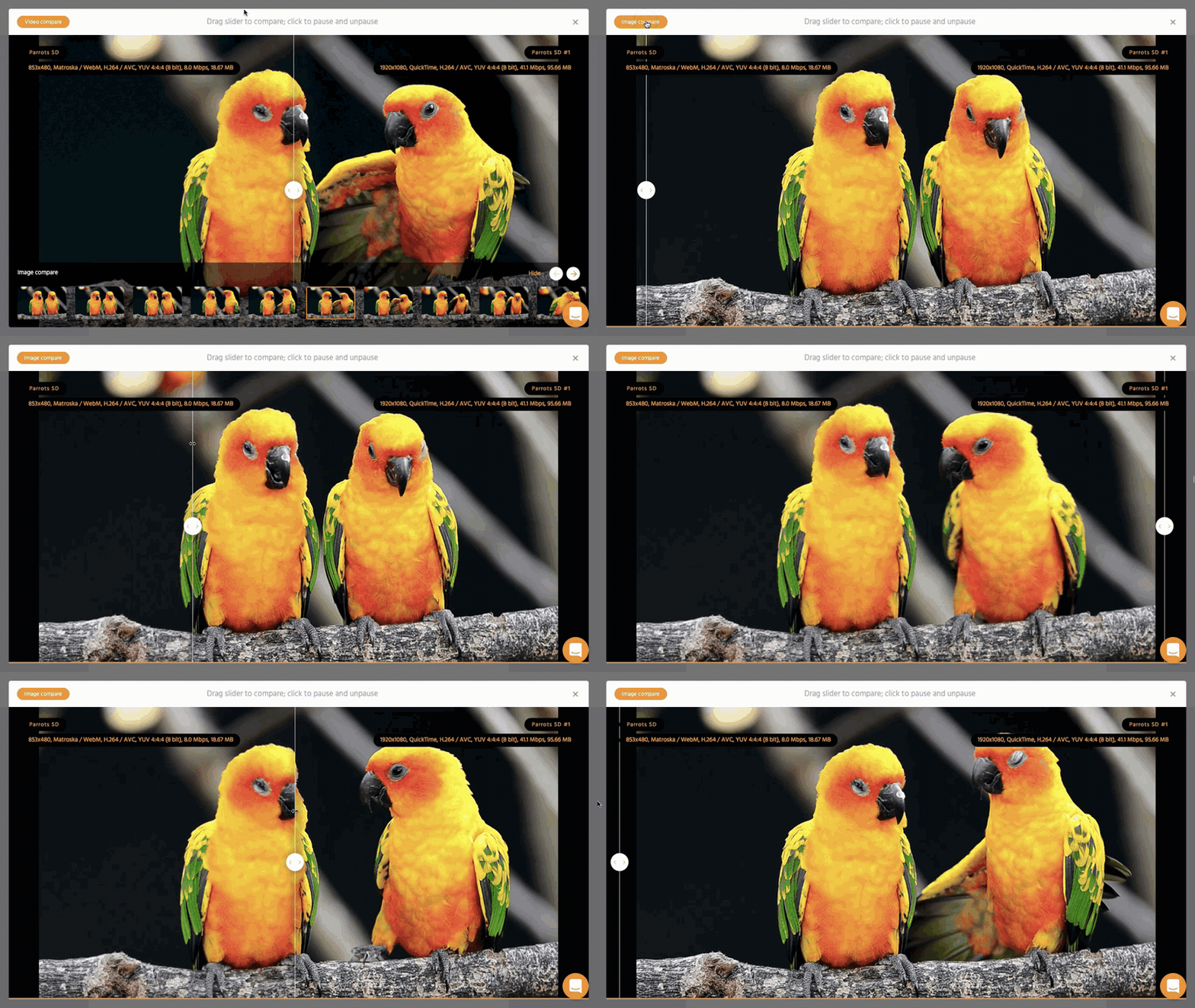
This is useful for evaluating changes that are easier to see in motion, such as stabilization, frame rate conversion, deinterlacing, and temporal artifacts.
Share a comparison
You can share a comparison with colleagues, customers, or other reviewers without sending the full processed video.
Select Share comparison to create a link to the comparison.
The recipient can use the link to review the source and processed result in the comparison view.
Try different processing settings
If you are not satisfied with the result, return to the source or test clip and try another preset or processing configuration.
For longer videos, we recommend experimenting on short clips before processing the complete source.
See Video quality, clips, and testing and Presets and processing settings.
Download a processed video
When you are satisfied with the result, download the processed video from Pixop Studio.
Select the processed video and use the available download action.
Download usage is billable.
For teams using direct Pixop billing, downloads are charged as Utilities usage.
For teams billed through AWS Marketplace, eligible download usage is metered in Pixop Credits through AWS Marketplace.
See Pricing and Billing overview for details.
Keep or delete processed videos
Source videos, automatically created clips, manually created clips, and processed videos remain stored in Pixop until they are deleted.
Stored user video data is billable. The built-in sample videos provided by Pixop are not charged for storage.
To reduce storage costs, delete videos, clips, and processing results you no longer need after downloading the files you want to keep.
See Pricing for current storage rates.
Need help?
If you have problems comparing or downloading a video, contact [email protected].
Updated 3 days ago