
Video quality, clips, and testing
Testing your processing settings on a short clip before processing an entire video can save both time and processing cost.
Check video quality
After a video has been uploaded and ingested, Pixop automatically analyzes the quality of the source.
The quality report is based on a sample of full frames from the video and evaluates three characteristics:
- Noise: the amount of Gaussian noise present in the sampled frames.
- Details: the amount of luminance detail from textures, edges, and other image structures.
- Colors: the amount of color detail from textures, edges, and other image structures.
Higher scores generally indicate higher-quality source material.
Pixop may also mark a source as Low quality. This indicates that the source may benefit from restoration or noise reduction before or while being upscaled.
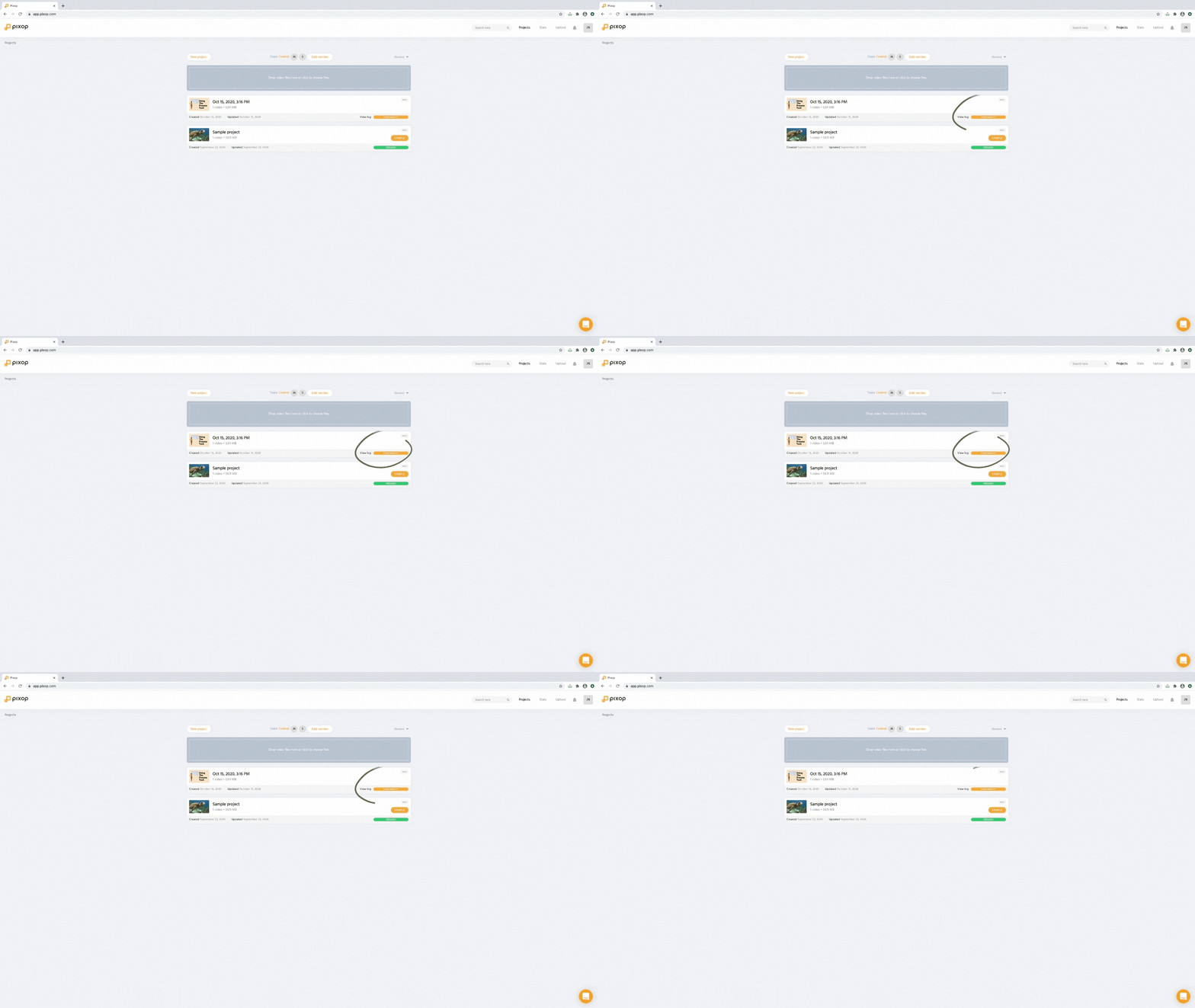
Open the video in Pixop Studio to view its quality information and other technical details.
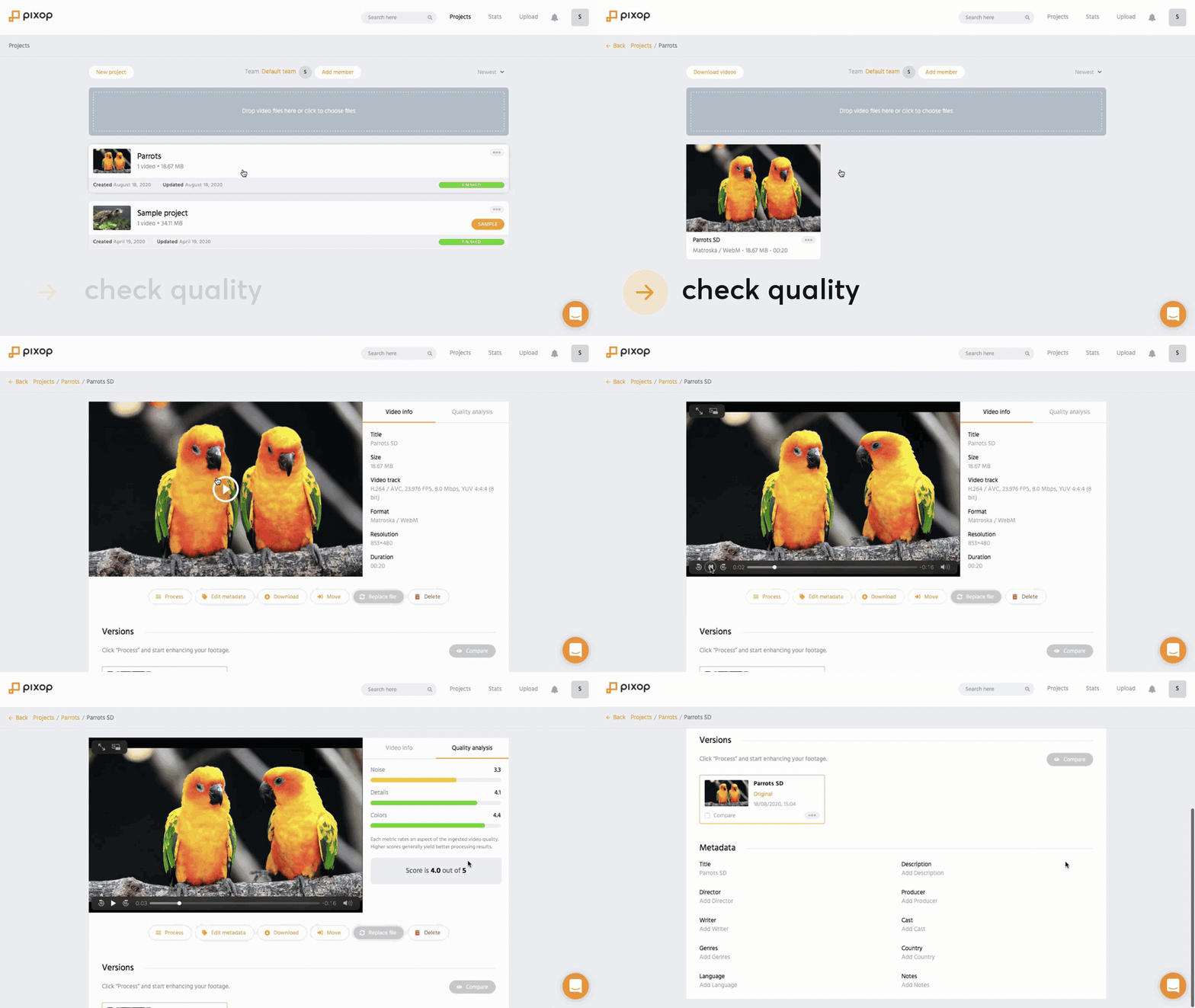
Use the automatically created test clip
By default, Pixop creates a 10-second clip when a source video is uploaded.
The clip appears separately from the full source and is intended for testing filters and processing settings before applying them to the complete video.
Automatic clip creation can be disabled in your Pixop Studio settings.
Create additional clips
You can create additional clips manually if you want to test another part of the video.
Open the source video and select Make Clip, then choose the section you want to use.
A clip of around 10 seconds is usually enough for testing.
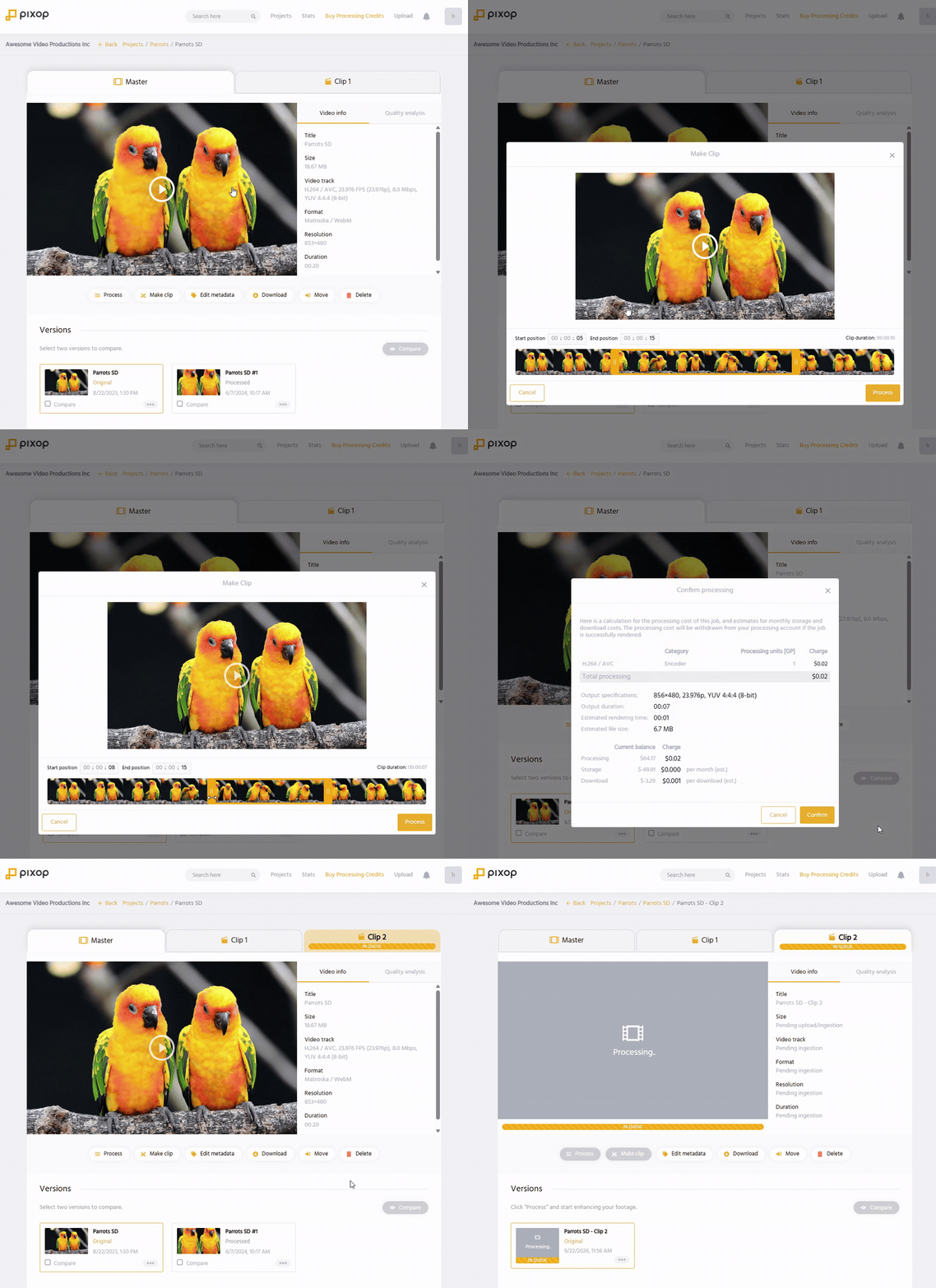
If the visual characteristics change significantly throughout the video, consider creating clips from several different sections. For example, you may want separate clips for indoor and outdoor scenes or for particularly noisy and clean sections.
Test filters and settings
Open a clip and select Process to choose the filters and processing settings you want to test.
Review the processing appraisal, then start processing the clip.
When processing is complete, compare the processed clip with the original unprocessed clip.
Repeat the process with different filters or settings if necessary.
Testing on clips lets you evaluate the result before spending the time and processing cost required for the full source video.
Save settings as a preset
Once you find a combination of filters and settings that gives you the result you want, you can save it as a preset and reuse it when processing the full video.
See Presets and processing settings for details.
Compare and share test results
You can compare the processed clip with the original clip using Pixop Studio's comparison tools.
You can also share a comparison link with someone else for review.
See Comparing and downloading results for more information.
What video enhancement can and cannot do
Video enhancement works best when the source contains enough real image detail for the filters to work with.
Pixop can reduce noise, restore damaged or degraded footage, improve perceived detail, and upscale video, but enhancement cannot recreate information that is no longer present in the source.
Very low-quality footage may therefore show only limited improvement. Common limitations include:
- very low source resolution
- severe compression artifacts
- excessive noise
- heavy blur or loss of focus
- damaged or degraded source material
- footage where fine image detail has already been lost
As a practical rule of thumb, more recent digital video, particularly material from around the 2000s onward, often provides better source detail for enhancement than older or heavily degraded material. However, the condition and characteristics of the individual source are more important than its age.
The best way to determine what can be achieved is to process a short representative clip before processing the full video.
Low-quality sources
If Pixop marks a source as Low quality, it does not necessarily mean that the video cannot be improved. It indicates that the source has characteristics that may limit the result.
Try one or more appropriate factory presets on a short representative clip and compare the result with the original.
See Presets and processing settings for information about the available factory presets.
Need help?
If you have questions about your source quality or which settings to test, contact [email protected].
Updated 3 days ago